
This is part 3 of a series. In part 1, we set up a new Azure Database for MySQL instance and ran a local Spring Boot app with embedded tomcat. In part 2, we deployed that application to an Azure Linux VM using only the command line.
In this part, I’ll show you how to deploy the application to a Docker container on Azure App Service Web Apps.
Prerequisites:
To get the most out of this post, you’ll have to follow though the first post and prerequisites. If you’re interested in deploying the app to a VM, you can also follow the optional steps in the second post. If you’re only interested in containers (and who isn’t these days!) you can start here after the first post.
In addition, you’ll need:
- The Docker CLI
- A recent version of Eclipse or IntelliJ
- To deploy this app to Azure App Service Web Apps, you’ll need to have the Azure toolkit for Eclipse or IntelliJ installed
Verify your account credentials via the command line
To make sure you’re logged in to your azure account, type az account list. If you’re not logged in, type az login and follow the prompts.
Compile the Spring Boot application for deployment
In part 1, we use the following maven command to compile and run the application:
mvn package spring-boot:run
To deploy the compiled application to a container, we need to compile the .jar file using the mvn package command, which will generate a file in the target directory called todo-app-java-on-azure-1.0-SNAPSHOT.jar
Run the app in Docker locally
Next, build and run on docker from the command window:
docker build -t <name of container> .
docker run -p 80:80 <name of container>
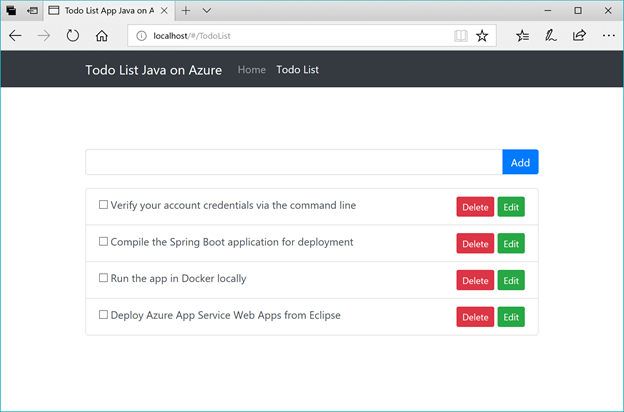
Access the app locally via http://localhost/#/Home
About the dockerfile
There’s a dockerfile in the main directory of the application (called dockerfile) that docker uses to decide what to do when the docker build and docker run commands are called. Here’s what’s in it:
FROM java
VOLUME /tmp
ADD target/*.jar /app.jar
ENTRYPOINT [ “java”, “-jar”, “/app.jar”, “ — server.port=80” ]
This dockerfile instructs Docker to create a new container using the base java container from Docker hub, include jar files from the current directory and subdirectories, .
NOTE: You could also use the newer openjdk image from Docker hub, but java works fine for this app (even though it’s deprecated).
Deploy Azure App Service Web Apps from Eclipse
These steps are the same whether using the Azure toolkit for Eclipse or IntelliJ. I’ll show how to deploy this to Azure App Service Web Apps using Eclipse.
Import the repo into Eclipse as a maven project
right click, Azure > Deploy to Web Apps for containers
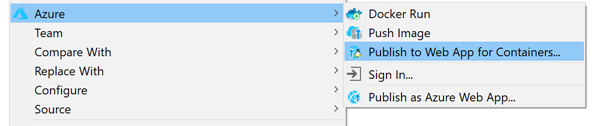
Eclipse will produce a link in the log console. Click on that link after a few minutes to see the app running in Web app for containers.
NOTE — The Web app will take a few minutes to spin up AFTER the link is produced.
You can check the status of the deployment by running this command in a command line that has the CLI installed and is logged in to your Azure account:
az webapp log tail -n <webapp name> -g <resource group name>
That concludes the three-part series! In Part 1, we set up a new Azure Database for MySQL instance and ran a local Spring Boot app with embedded tomcat. In Part 2, we deployed that application to an Azure Linux VM using only the command line. In this part, we ran the app in docker locally then deployed to a Docker container on Azure App Service Web Apps.
Let us know what you think!


Leave a Reply